How to Automatically Highlight Code Blocks in Your Next.js App (app router) ? 🌈📚

Keep exploring
Auth is a Dumpster Fire. Can 'Better Auth' Put It Out?
July 19, 2025
The Quest for Prettier Code: Enabling Ligatures (and Why Alacritty Might Break Your Heart)
June 29, 2025
UI/UX in the Matrix: Surviving and Thriving in AR/VR and Game Design
June 28, 2025
Stop Paying Google: Free (or Free-ish) Maps for Your React App
June 20, 2025
Mastering State and Data Synchronization in Modern React Applications
June 17, 2025
How to Automatically Highlight Code Blocks in Your Next.js App (app router) ? 🌈📚
Ever stumbled upon a blog post with beautifully highlighted code blocks and wondered, "How can I make my code look this cool?" Well, if your site is powered by Next.js, you're in for a treat! Let's dive into the magic of making your code blocks pop with colors and styles, effortlessly.
🖥️ The Challenge with Plain Code Blocks
Imagine this: You're crafting an insightful blog post, filled with code snippets to share your coding wisdom.
For this blog, I wanted to highlight codeblock to make thing easier to read.
To give you all the context, I store my article to a Stapi API in markdown format.
I can use the markdown notation to create codeblock like that :
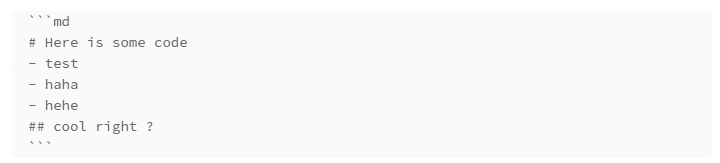
Using the react-markdown library, I transform the article into proper HTML. But alas, the code blocks look... well, a bit dull. 😞
✨ Enter Highlight.js
To bring life to these code blocks, we enlist the help of Highlight.js, a library that scans your page's DOM for code elements to spruce them up with custom classes and CSS magic.
Sounds like a fairy tale, right? But hold on... there's a catch.
Highlight.js relies on web browser APIs to examine the DOM. In a Next.js environment, where server components reign supreme, document or window might as well be figments of our imagination. 😢
🌐 Crafting a Client-Side Solution
Fear not! The solution lies in creating a client component dedicated to loading Highlight.js exclusively in the browser.
The Code Spell: component/Highlight.js
"use client"; // Ensuring it's browser territory
import hljs from "highlight.js"; // The magic library
import "highlight.js/styles/panda-syntax-dark.min.css"; // Stylish code attire
import {useEffect} from "react";

export default function Highlight() {
    useEffect(() => {
        // Just double-checking we're not dreaming
        if (typeof window !== "undefined") {
            // The magical incantation
            hljs.highlightAll();
        }
    }, []); // This charm is cast only once

    return null; // Invisible but mighty
}
🎨 To find your perfect code theme, explore every preset here. I'm quite smitten with panda-syntax-dark.
🚀 Deploying the Magic Throughout Your Blog
Now, you can invoke this component anywhere you've got code blocks awaiting their glow-up. It'll spring into action on the client side, leaving your pages both performant and SEO-friendly.
Implementing the Highlight: blog/page.js
import React from "react";
import {notFound} from "next/navigation";
import getAllBlogs from "/src/services/blog.services";
import RenderMdx from "/src/components/Blog/RenderMdx";
import Highlight from "/src/components/Highlight"; // Import the component here

export default async function BlogPage({params}) {
    const allBlogs = await getAllBlogs();
    const blog = allBlogs.find((blog) => blog.url === params.slug);

    if (!blog) {
        notFound();
    }

    return (<>
            <article>
                <RenderMdx blog={blog}/> {/*Transforming markdown to HTML*/}
                <Highlight/> {/*Casting the color spell on the client side only*/}
            </article>
        </>);
}
🌟 The Enchanting Outcome
With this setup, your articles and code snippets are rendered server-side, benefiting from Next.js's SSR or SSG superpowers. This means lightning-fast loading times and a boost in SEO - all while ensuring your readers are greeted with aesthetically pleasing code blocks. It's a true win-win! 😁